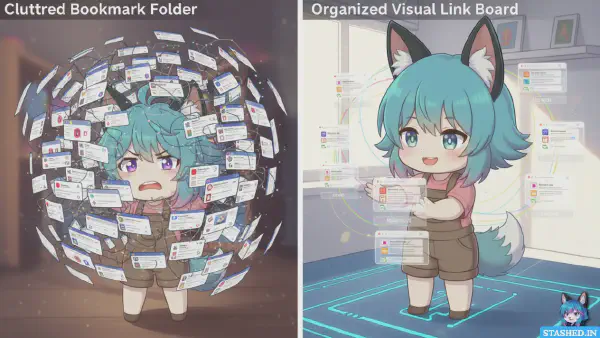

Three months ago, I was chatting with a designer friend over coffee. She was showing me her “inspiration system” which consisted of 300+ browser bookmarks organized into folders with names like “Colors,” “Colors2,” and “idk maybe colors.”
“How do you find anything?” I asked.
She laughed. “I don’t. I just keep Googling the same things over and over until I accidentally stumble across something I’d already saved.”
This is the internet collection problem in a nutshell. We all encounter amazing things online every single day. Articles that change how we think. Tools that solve specific problems. Examples that inspire our work. Tutorials that teach valuable skills.
And most of it vanishes into the void within 48 hours.
Not because we’re forgetful (though that doesn’t help). But because the tools we use for collecting internet finds are fundamentally broken. Browser bookmarks were designed in 1993 when the internet had 500 websites total. They haven’t evolved.
Meanwhile, we’re trying to manage hundreds or thousands of saved links across devices, browsers, and contexts. It’s like trying to organize a modern library using index cards and a filing cabinet.
The good news? Better tools exist. Tools actually designed for how we use the internet today. Tools built around visual memory, easy sharing, and actual retrieval instead of just storage.
Let me walk you through the best options available in 2025, what each does well, and how to choose the right one for your needs.
What Makes a Great Collection Tool#
Before diving into specific tools, let’s establish what actually matters. A tool for collecting internet finds needs to excel at three things:
Easy Capture#
If saving something requires more than a few seconds, you won’t do it consistently. The best tools meet you where you are with browser extensions, mobile share sheets, or email forwarding.
The friction between “I want to save this” and “this is saved” should be minimal. Any extra steps compound into reasons not to bother.
Findability Later#
Collecting is useless if you can’t retrieve. Good tools use multiple discovery methods: visual browsing, smart search, tags, collections, and related item suggestions.
Research shows people have about a 30% success rate finding bookmarked content. The right tool should get that closer to 90%.
Sharing Without Friction#
The internet is social. Good finds should be easy to share with colleagues, friends, or publicly. Sharing one item or entire curated collections should both be trivial.
Tools that make sharing complicated miss half the value of curation.
The Best Tools for Different Use Cases#
There’s no single perfect tool. Different needs require different solutions. Here’s what works for what.
Stashed.in: For Visual Thinkers and Curators#
Full transparency: I built Stashed.in because existing tools didn’t solve my specific problem. I’m a visual thinker. Text lists of bookmarks make my brain hurt.
Stashed.in works like Pinterest but for any type of link. You create “stashes” (visual boards) with header images. Each saved link shows as a preview card with image, title, and description.
What it excels at:
- Visual organization that matches how many people’s brains work
- Easy sharing at multiple levels (one link, one stash, or your whole profile)
- Privacy flexibility (public, private, or password-protected stashes)
- Collaborative curation where teams can build collections together
- Zero learning curve (if you’ve used Pinterest, you already know how it works)
Best for:
- Design and creative work where visual browsing matters
- Building public resource collections that showcase expertise
- Team collaboration on research or resources
- Anyone who thinks spatially rather than hierarchically
Limitations:
- No browser extension yet (you add links through the site)
- Focused specifically on links (not documents or files)
- Smaller community than established alternatives
I use Stashed.in for everything visual: design inspiration, UI examples, color palette tools, typography resources. The ability to browse visually means I actually rediscover things instead of forgetting they exist.
When someone asks for design resources, I share a stash URL. They see an organized, visual collection with context for each resource. Way better than forwarding a list of URLs.
Raindrop.io: The Power User’s Choice#
If you want bookmarks but actually good, Raindrop.io is the answer.
It’s got everything: collections, tags, full-text search, permanent copies of pages, highlights and annotations, broken link detection, duplicate finding, and collaboration features.
What it excels at:
- Comprehensive feature set covering nearly every use case
- Excellent browser extensions for all major browsers
- Strong mobile apps that actually work well
- Nested collections for detailed organization
- Smart suggestions and related content discovery
Best for:
- People who save a LOT of links (hundreds or thousands)
- Those who need powerful search and filtering
- Anyone wanting a complete replacement for browser bookmarks
- Teams needing collaboration features
Limitations:
- Can feel overwhelming for casual users
- Free tier is generous but power features require Pro ($28/year)
- Interface is functional but not particularly inspiring to browse
Raindrop.io is my recommendation for people who are serious about link management and want maximum power. If you’re the type who uses keyboard shortcuts and appreciates advanced filtering, you’ll love it.
Notion: For People Who Live in Notion#
If you’re already deep in the Notion ecosystem, adding link management there makes sense.
Create a database with properties for URL, title, description, tags, category, status, and whatever else matters to you. Use gallery view for visual browsing, table view for detailed lists, and create filtered views for different contexts.
What it excels at:
- Deep integration with other Notion content
- Maximum flexibility (design exactly what you need)
- Powerful relational capabilities (link resources to projects, notes, etc.)
- Collaborative editing and commenting
- Beautiful, customizable interface
Best for:
- Notion power users who want everything in one place
- People managing links as part of larger projects
- Teams already using Notion for collaboration
- Anyone who enjoys building custom systems
Limitations:
- Requires setup (databases don’t build themselves)
- Steeper learning curve than single-purpose tools
- Can feel sluggish with large databases
- Easy to spend more time perfecting the system than using it
I keep some link collections in Notion, specifically ones tied to active projects. When I’m working on something with extensive documentation and research, having links in the same workspace as notes and tasks creates useful connections.
Pocket: Simple Reading Queue#
Pocket (owned by Mozilla) has been around forever and does one thing really well: save articles to read later.
The interface is clean, the reading experience is excellent, and it works everywhere. Premium adds full-text search and permanent library storage.
What it excels at:
- Frictionless saving from anywhere
- Beautiful, distraction-free reading experience
- Excellent text-to-speech for audio listening
- Good recommendation engine based on what you save
- Strong privacy (Mozilla doesn’t sell your data)
Best for:
- People primarily saving articles to read
- Creating a “read later” queue separate from reference material
- Anyone wanting simple, reliable functionality
- Privacy-conscious users who trust Mozilla
Limitations:
- Primarily designed for articles, less great for tools or diverse content
- Organization is basic (tags and favorites, that’s it)
- Not built for heavy curation or sharing
- Free tier is quite limited
Pocket works great as an inbox for reading material. I use it specifically for long articles I want to read on my phone during commutes. It’s not my main collection tool, but it serves its specific purpose well.
Readwise Reader: For Serious Readers#
Readwise Reader is the new kid who came in swinging. It’s a unified inbox for everything you want to read: articles, PDFs, emails, RSS feeds, YouTube transcripts, Twitter threads.
What it excels at:
- Brilliant reading experience with customizable typography
- Highlighting and note-taking that syncs to your note app
- Ghostreader AI that can summarize or answer questions about content
- Triage system that helps you actually process your reading queue
- Automatic sync to Readwise (if you use that for spaced repetition)
Best for:
- Knowledge workers who read extensively
- People who want to actually engage with content, not just hoard it
- Anyone using the Readwise system for knowledge retention
- Researchers who need to highlight and annotate
Limitations:
- $7.99/month (no free tier)
- Primarily focused on reading, less great for reference collections
- AI features might feel gimmicky to some
- Newer product, still evolving
If reading and retaining information is core to your work, Reader is worth the money. The highlighting alone justifies it for serious readers. But if you primarily need reference collections rather than a reading system, look elsewhere.
Are.na: For Creative Research#
Are.na is different. It’s less a bookmarking tool and more a collaborative platform for creative research and knowledge building.
You create “channels” (collections) that can contain links, images, files, or text blocks. Content can live in multiple channels. Everything is shareable and remixable.
What it excels at:
- Visual, spatial organization that feels creative rather than administrative
- Collaborative research and collective knowledge building
- Public/private flexibility with a focus on sharing
- Cross-pollination (seeing where else content appears)
- Community of interesting creative people
Best for:
- Artists, designers, researchers, and creative thinkers
- Collaborative research projects
- Building public knowledge collections
- Anyone who wants to connect with a community of curators
Limitations:
- Deliberately minimal interface that some find confusing
- Less structured than traditional tools (feature or bug depending on perspective)
- Smaller user base than mainstream alternatives
- Free tier has limits on private blocks
Are.na attracts a specific type of user: creative knowledge workers who want something more thoughtful than “just save links.” If that’s you, check it out. If you want something straightforward, it might feel too abstract.
Pinboard: For Minimalists#
Pinboard is the anti-social bookmark service. No nonsense, no fancy features, just reliable bookmark storage with tags and full-text search.
It’s been around since 2009, costs $11/year (one-time fee, not subscription), and its creator famously doesn’t care about growth or features.
What it excels at:
- Simplicity and reliability
- Speed (the interface is lightning fast)
- Privacy (no tracking, no social features unless you want them)
- Archival features (saves full page content)
- Works great with external tools and scripts
Best for:
- People who want simple, reliable bookmark storage
- Those who dislike feature bloat and social aspects
- Developers who want to script their own workflows
- Anyone nostalgic for “old web” simplicity
Limitations:
- Interface looks like it’s from 2009 (because it is)
- No mobile apps (web interface works but isn’t optimized)
- Zero hand-holding or onboarding
- Not really designed for sharing or collaboration
Pinboard is for people who know what they want and don’t need anything fancy. I respect it immensely but don’t personally use it because I need visual organization.
How to Choose the Right Tool for You#
With all these options, how do you decide? Ask yourself these questions:
What Are You Primarily Collecting?#
Articles for reading: Pocket or Readwise Reader
Visual inspiration: Stashed.in or Are.na
Everything (articles, tools, docs, examples): Raindrop.io or Notion
Reference material for work: Notion or Raindrop.io
Match the tool to your primary content type.
How Do You Want to Organize?#
Visual/spatial thinker: Stashed.in or Are.na
Hierarchical thinker: Raindrop.io or Notion
Tag-based organizer: Pinboard or Pocket
Don’t want to organize much: Pocket
Your natural organizational style should guide the tool choice.
Do You Need to Share?#
Frequently sharing with teams: Stashed.in, Notion, or Are.na
Occasionally sharing collections: Raindrop.io
Rarely sharing: Pocket or Pinboard
Building public expertise: Stashed.in or Are.na
Sharing needs dramatically affect which tools work.
What’s Your Budget?#
Free forever: Stashed.in (for links), Notion (for individuals), Are.na (limited)
Free with paid upgrades: Raindrop.io, Pocket
Paid only: Readwise Reader ($7.99/month), Pinboard ($11 one-time)
Most tools have functional free tiers, but decide if premium features are worth it.
How Much Setup Are You Willing to Do?#
None, just works: Pocket, Stashed.in
Minimal: Raindrop.io, Pinboard
Moderate: Are.na
Significant: Notion (requires building your system)
Be honest about your setup tolerance.
My Personal Stack (and Why)#
Since people always ask, here’s what I actually use and why:
Stashed.in for visual collections, design resources, tools, and anything I might share. This is my primary system because visual organization works for my brain.
Readwise Reader for articles I want to read and highlight. The reading experience is excellent, and highlights sync to my notes.
Notion for project-specific research that needs to integrate with project documentation. If I’m doing deep research for something with lots of moving parts, it lives in Notion alongside everything else.
Pocket occasionally as an overflow reading queue when Reader feels too heavy.
This seems like a lot, but each tool serves a distinct purpose. Stashed.in for reference and sharing, Reader for reading and learning, Notion for project work. They don’t overlap or conflict.
Your stack might be simpler (one tool) or different (using Raindrop.io instead of my combo). That’s fine. The key is intentionally choosing tools that match your actual workflow.
The Multi-Tool Approach vs. All-in-One#
There’s ongoing debate about whether you should use multiple specialized tools or one all-in-one solution.
Arguments for Multiple Tools#
Each tool does one thing excellently. Pocket’s reading experience beats Notion’s. Stashed.in’s visual browsing beats Raindrop’s. Specialized tools excel at their specific job.
Different content types have different needs. Articles need reading optimization. Visual resources need browsing interfaces. Reference docs need search.
Single point of failure is risky. If your all-in-one tool dies or changes dramatically, you lose everything.
Arguments for All-in-One#
Context switching is cognitively expensive. Jumping between tools takes mental energy and breaks flow.
Everything is searchable in one place. No wondering “which tool did I save that in?”
Simpler mental model. One place for everything is easier to remember than different tools for different content.
My Take#
For most people, 2-3 tools is the sweet spot. One primary tool for most content, plus 1-2 specialists for specific needs.
All-in-one sounds appealing but no single tool is actually good at everything. Multiple tools provide flexibility without overwhelming complexity.
The wrong answer is using six tools that all do similar things. That’s just multiplying organizational work.
Common Mistakes to Avoid#
After years of helping people organize their internet finds, I’ve seen these mistakes repeatedly:
Trying Every Tool Instead of Committing#
Tool switching is procrastination disguised as productivity. Pick something good enough and use it for three months before evaluating alternatives.
Not Adding Context When Saving#
Saving raw URLs without descriptions means future-you has no idea why anything mattered. Add one sentence of context. Always.
Organizing Perfectly Before Using#
Stop designing the perfect system. Start using a good-enough system and let it evolve based on actual use.
Saving Everything “Just In Case”#
More is not better. Curate ruthlessly. Only save what you’ll realistically reference or what represents valuable knowledge.
Never Reviewing What You’ve Saved#
If you only access your collection when searching for something specific, you’re missing half the value. Browse regularly.
Ignoring Mobile Workflows#
Much of your saving happens on phones. If your tool’s mobile experience is terrible, you’ll stop using it consistently.
Making Your Tool Choice Actually Stick#
Choosing a tool is easy. Actually using it consistently is hard. Here’s how to make it stick:
Use It for Two Weeks Before Judging#
Surface-level testing reveals nothing. Commit to using something exclusively for two weeks before deciding if it works.
Set Up Capture Methods Everywhere#
Install browser extensions, configure mobile sharing, set up email forwarding. Remove friction from saving.
Schedule Weekly Reviews#
15 minutes every Friday to browse what you saved that week. This habit makes collection useful instead of just accumulative.
Share Something Monthly#
Find one reason per month to share from your collection. Sharing reinforces the value of curation.
Forgive Imperfection#
Your system won’t be perfect. Some things will be miscategorized. Some context will be minimal. That’s okay. Working system beats perfect system.
The Real Goal Behind All This#
Here’s what I’ve learned after building Stashed.in and obsessing over collection tools:
The tool doesn’t matter nearly as much as the habit of intentional curation.
You can have the perfect tool and still just mindlessly save things you never look at again. Or you can have a basic tool and build something genuinely valuable through thoughtful selection and organization.
The tool is infrastructure. The real work is deciding what’s worth keeping, adding meaningful context, organizing thoughtfully, and actually using what you’ve collected.
That said, infrastructure matters. The right tool removes friction and encourages good habits. The wrong tool makes curation feel like homework.
So choose thoughtfully, but then focus on the practice of curation itself. That’s where the value lives.
Start Collecting Intentionally Today#
Here’s your action plan:
Today: Pick one tool from this article based on your primary need. Create an account.
This week: Set up capture methods (extensions, mobile sharing). Save 10-20 things you encounter, adding brief context to each.
This month: Develop a weekly review habit. Spend 15 minutes every week browsing what you’ve saved and organizing it.
This quarter: Share something from your collection. Show someone a curated resource list or publish a collection publicly.
The internet is an infinite stream of interesting things. Most people let it flow past and forget 99% of what they encounter.
The 1% who intentionally collect, curate, and organize their finds build genuine intellectual assets over time. They become known for having excellent resources. They compound their learning instead of constantly starting from scratch.
You can be in that 1%. It just takes a decent tool and consistent practice.
Stop letting brilliant finds disappear into the void. Start building your collection today.